Update your work from the field, close your day in a minute.
ReadyFy Mobile is the phone version of ReadyFy. It shows the activities due today, your alerts, what changed in your projects and the team chat. Everything you do here is saved in the same project history you see on desktop.
Sign in
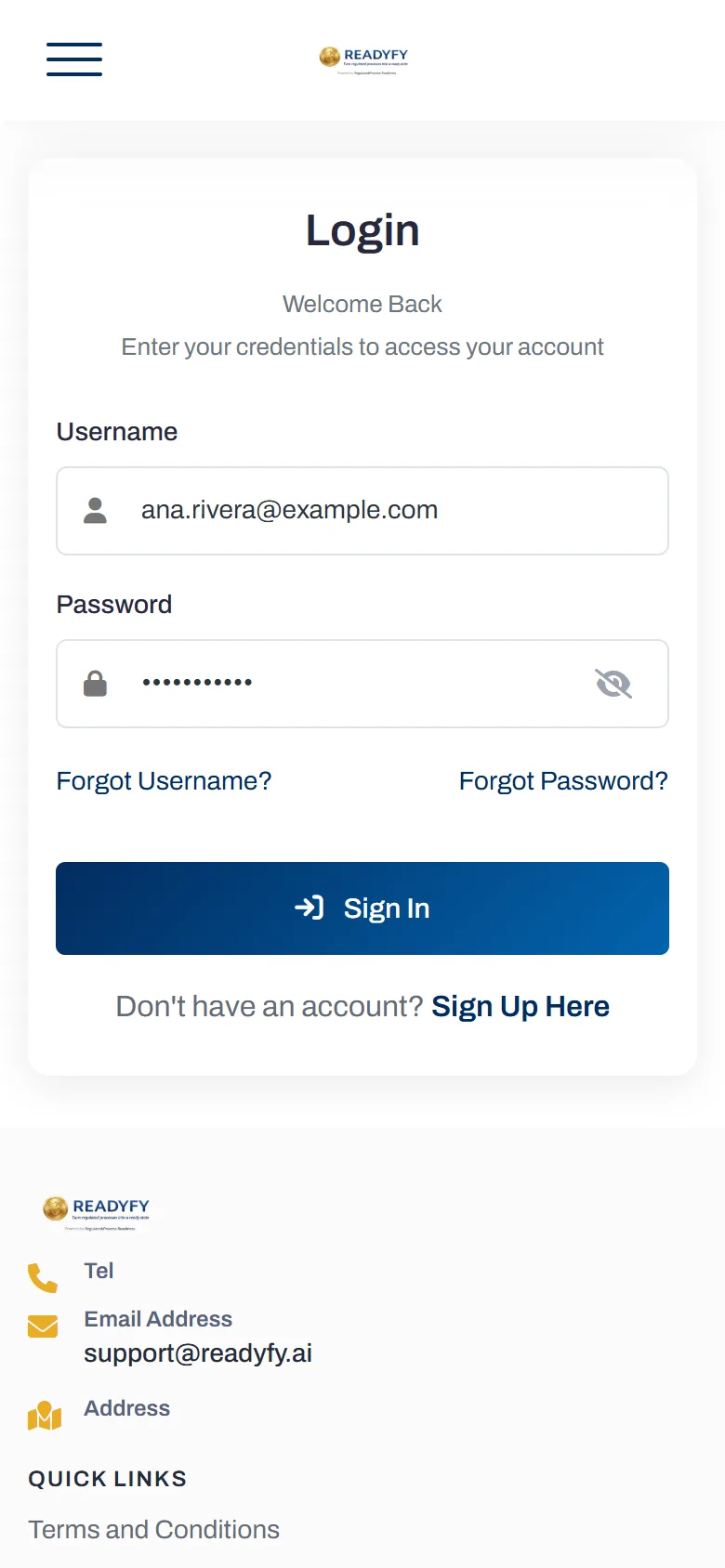
Use the same username and password as the ReadyFy website. From a phone you land straight in the app, not in the desktop panel.
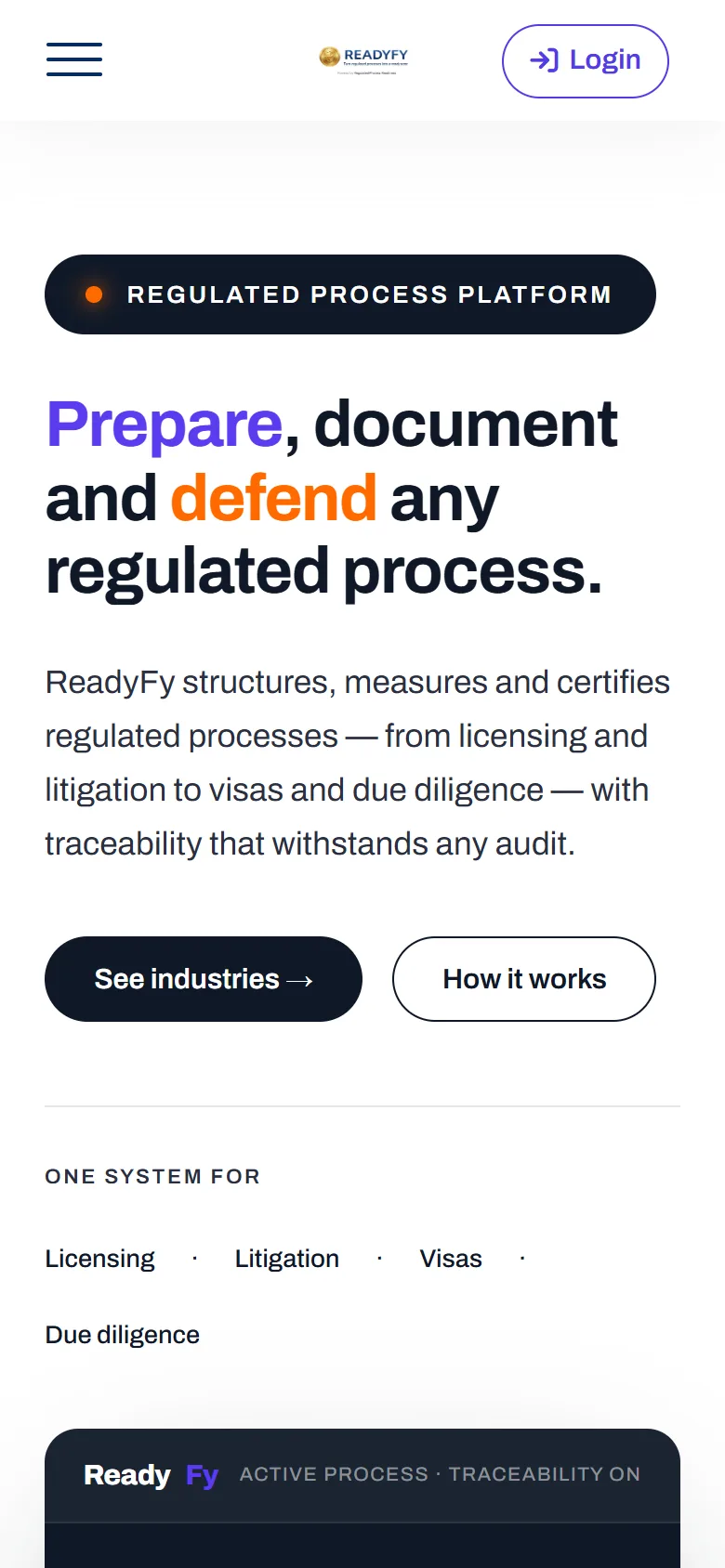
- Open readyfy.ai/m/ in your phone's browser. You can also open readyfy.ai and tap Login at the top right.
- Enter your username and password and tap Sign In.
- You arrive at My Day. The session lasts 14 days and renews every time you use the app, so you rarely need to sign in again.
Install it on your home screen
Installing is optional, but it is the fastest way in: one tap on the icon, full screen, no address bar. There is nothing to download from an app store.
Android Chrome
Install from the app itself, after signing in.
- Open readyfy.ai/m/ in Chrome and sign in.
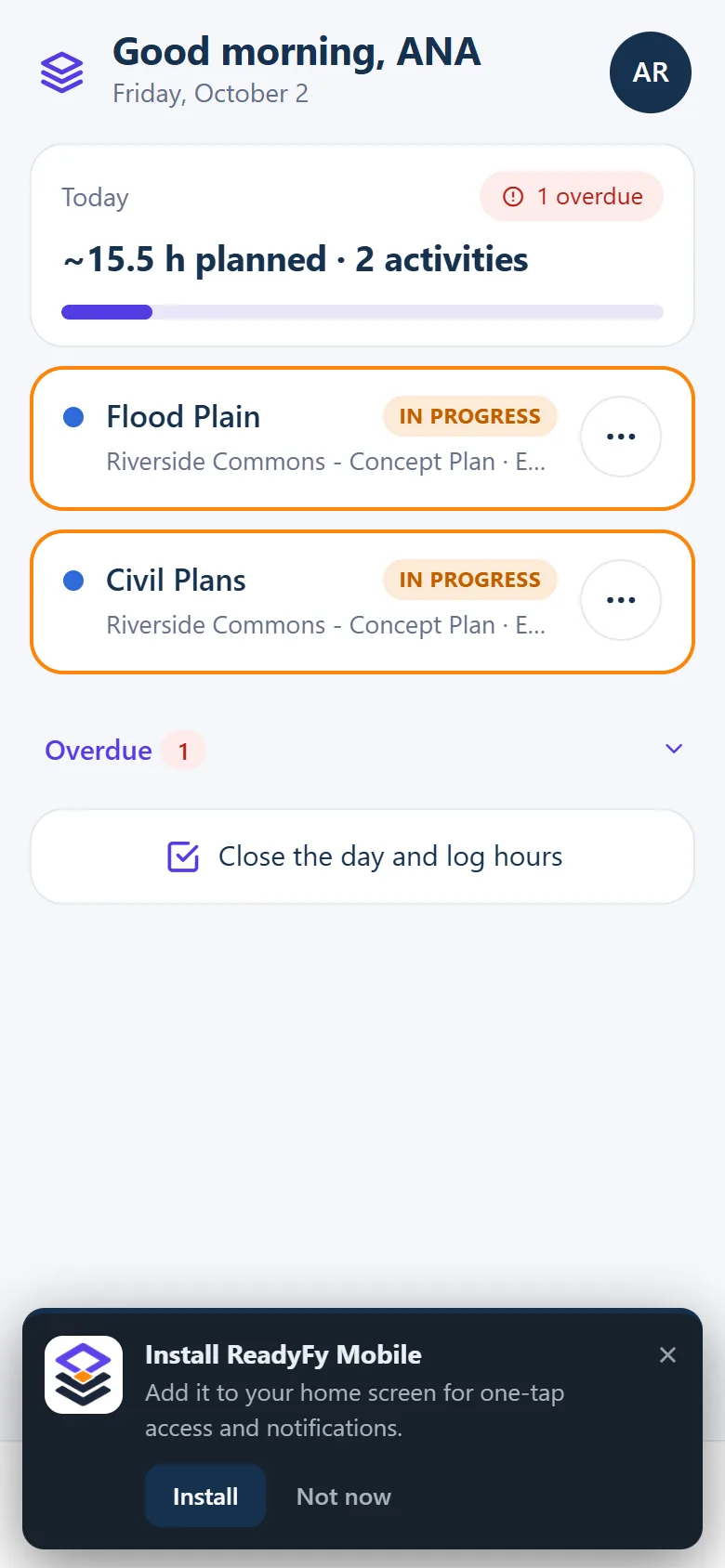
- Tap Install on the "Install ReadyFy Mobile" banner. If you don't see it, open the menu and choose Install app.
- The ReadyFy icon appears with your other apps.
iPhone Safari
iPhone does not show an Install button. Use the Share menu.
- Open readyfy.ai/m/ in Safari and sign in.
- Tap Share, then Add to Home Screen, then Add.
- Open it from the icon and sign in once more. The installed app keeps its own session, separate from Safari.
Which browser to use
- Android: Chrome installs a real app (it shows up in your app drawer and settings).
- iPhone: Safari.
- Brave, Firefox and other browsers only create a shortcut that opens inside the browser. The app still works there, but to install it use Chrome or Safari.
My Day
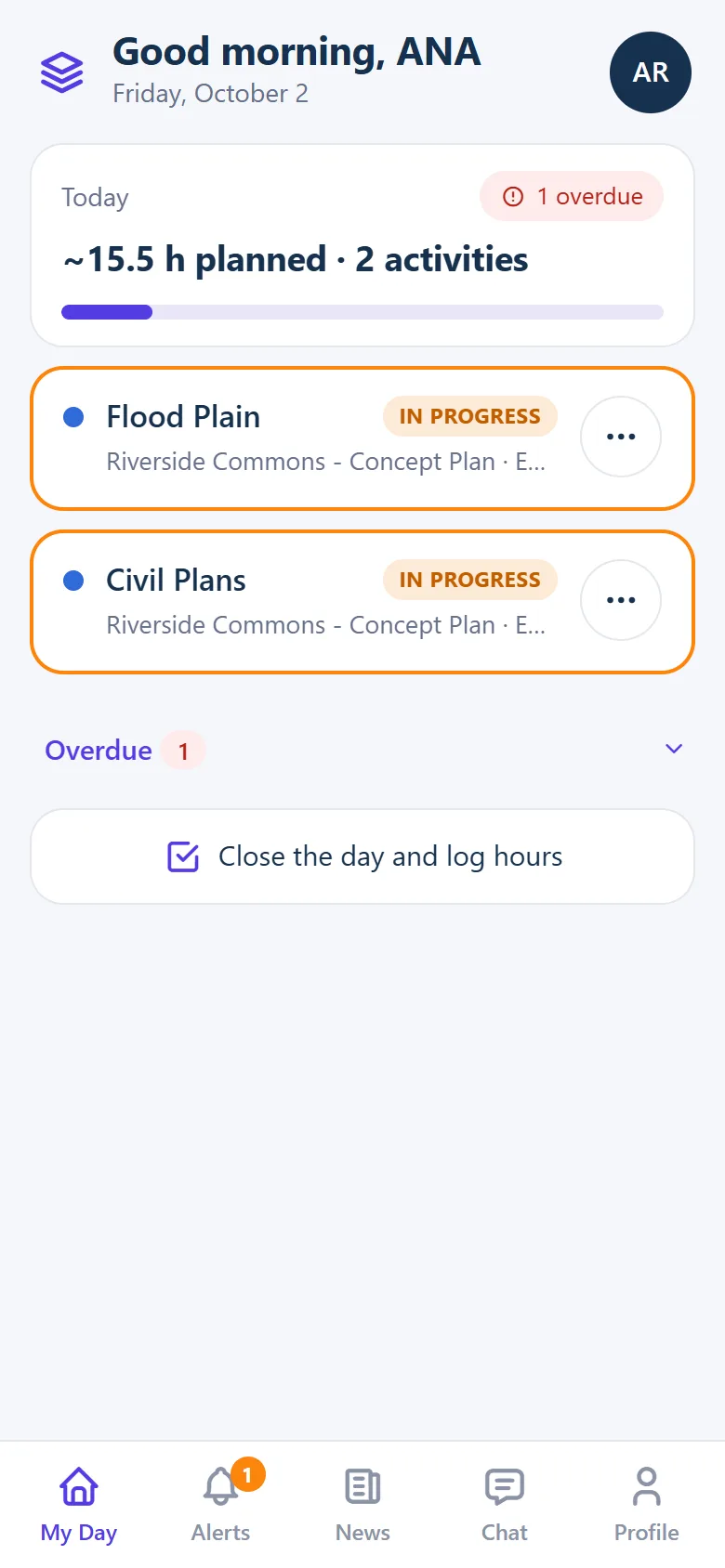
Your activities planned for today, plus anything you already have in progress. The summary card shows the estimated hours for today and your average progress.
- An orange border marks an activity in progress. A red edge marks one past its due date.
- Overdue groups everything past its due date. Tap it to expand the list.
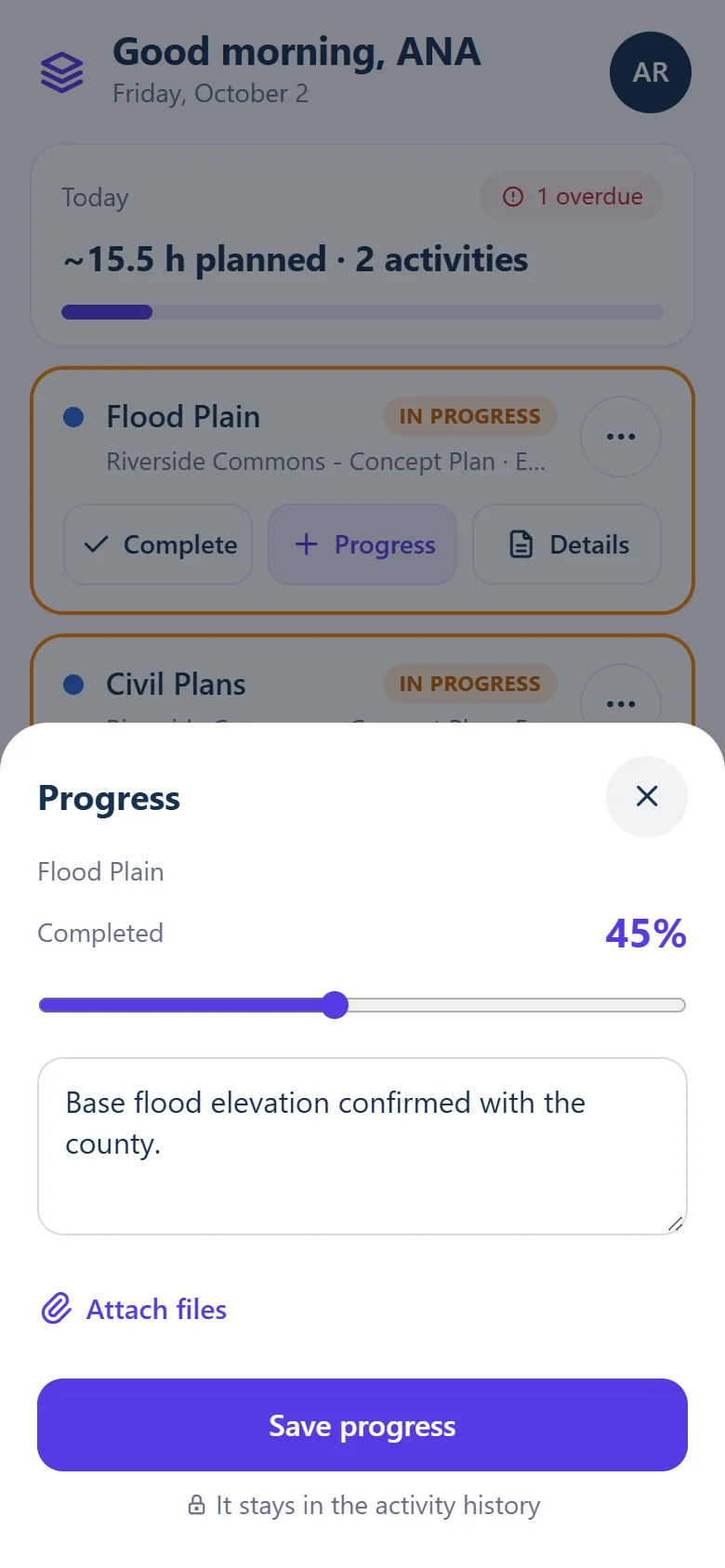
- Tap on a card to see its actions: Start, Complete, Progress and Details. Starting and completing ask for confirmation first.
- A chip like Waiting on … means the activity depends on another one that is not finished. It cannot start until that one is completed.
- Unblocks … tells you who is waiting for you to finish.
Report progress
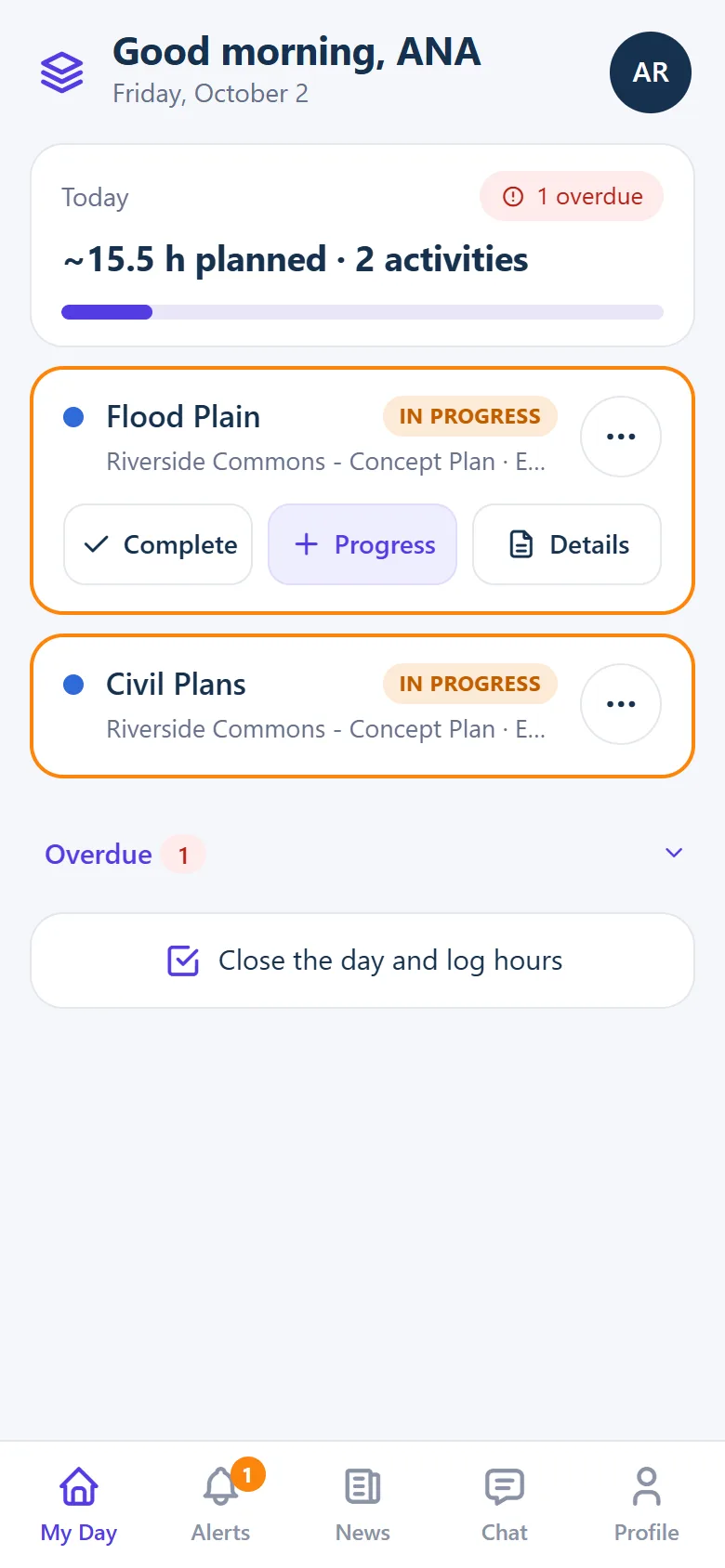
- Tap Progress on an activity in progress.
- Slide to the new percentage, write what you did (optional) and attach photos or files if you have them.
- Tap Save progress. It is added to the activity history and the team sees it in News.
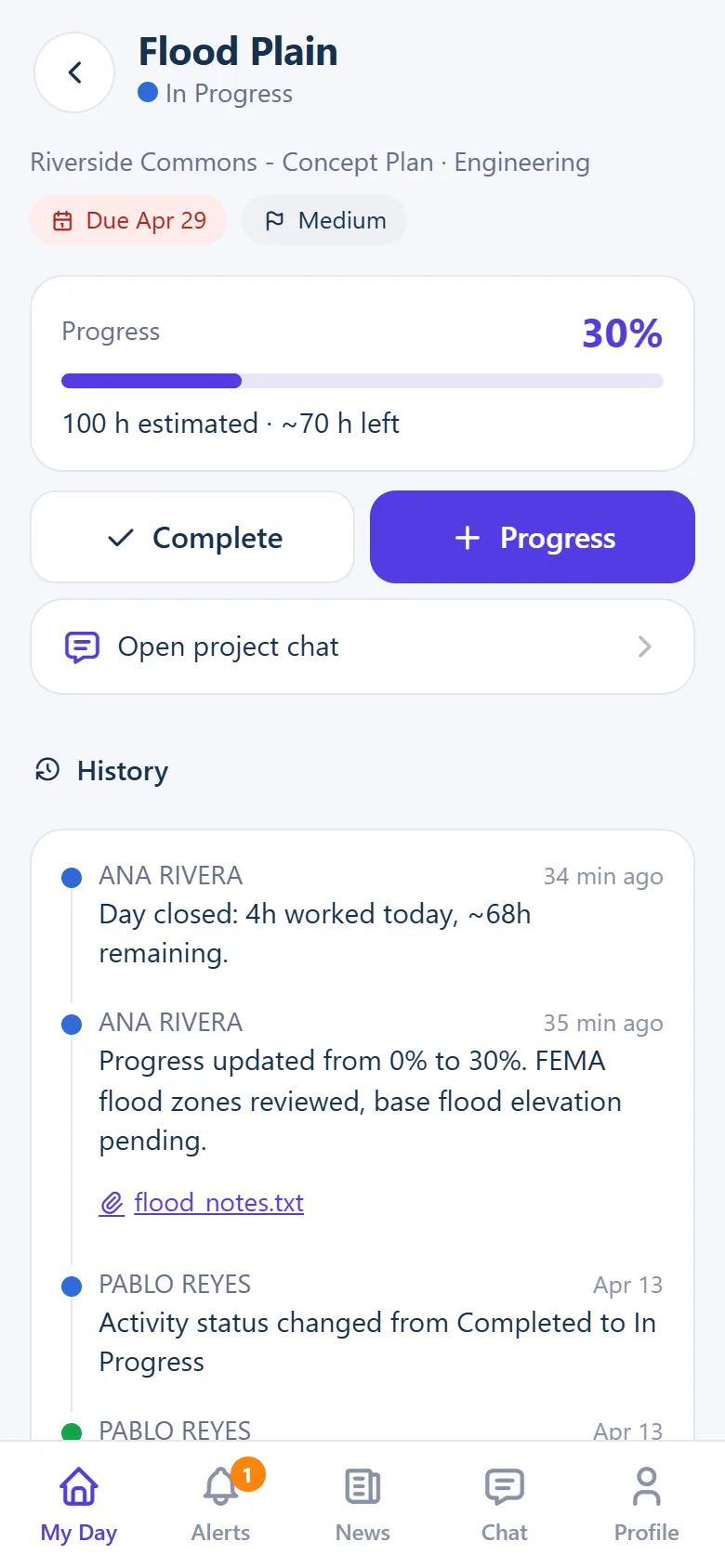
Details opens the full activity: due date, priority, hours estimated and left, and its whole history with attachments. From there you can jump to the project chat.
Close the day
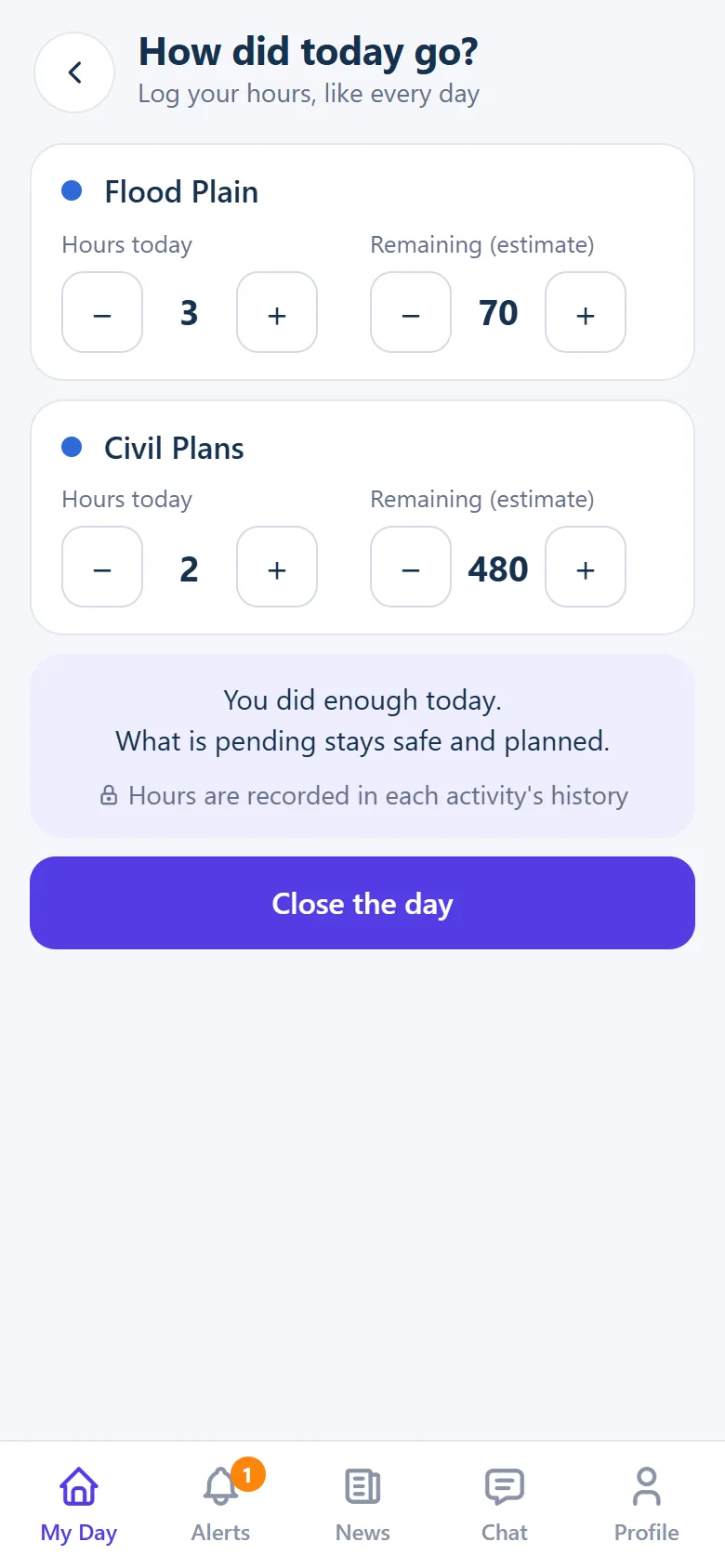
At the end of the day, log how many hours you worked on each activity and how many you think are left. It takes less than a minute.
- In My Day, tap Close the day and log hours.
- Use − and + to set Hours today (half-hour steps) and adjust Remaining if needed.
- Tap Close the day. Only activities with hours greater than zero are saved.
Alerts
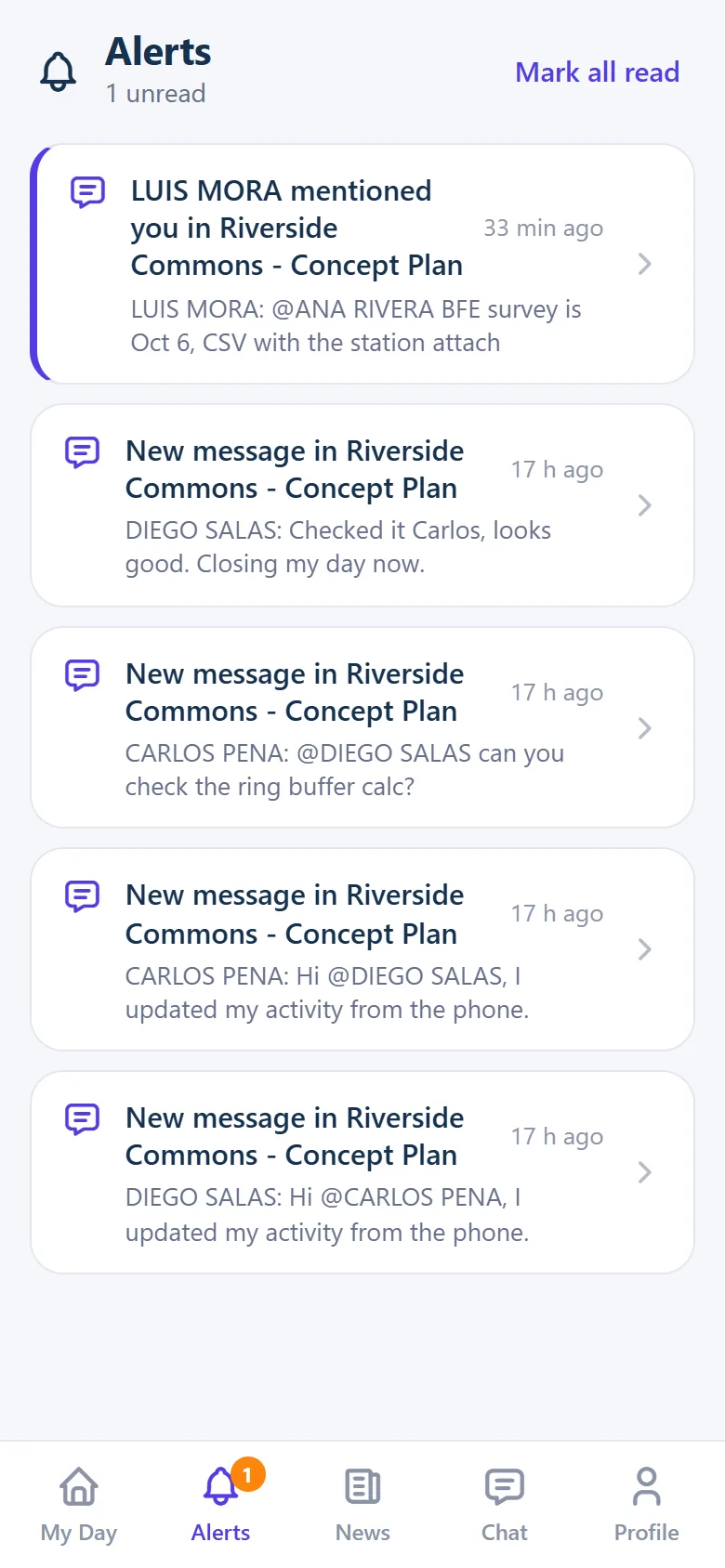
Everything that needs your attention: mentions in a chat, new messages in your projects, activities assigned to you and, if you manage a project, activities completed or blocked.
- The number on the tab counts unread alerts. Unread alerts have an indigo edge.
- Tap an alert to open where it happened: the chat or the activity.
- Opening a chat marks its alerts as read. Mark all read clears the rest at once.
News
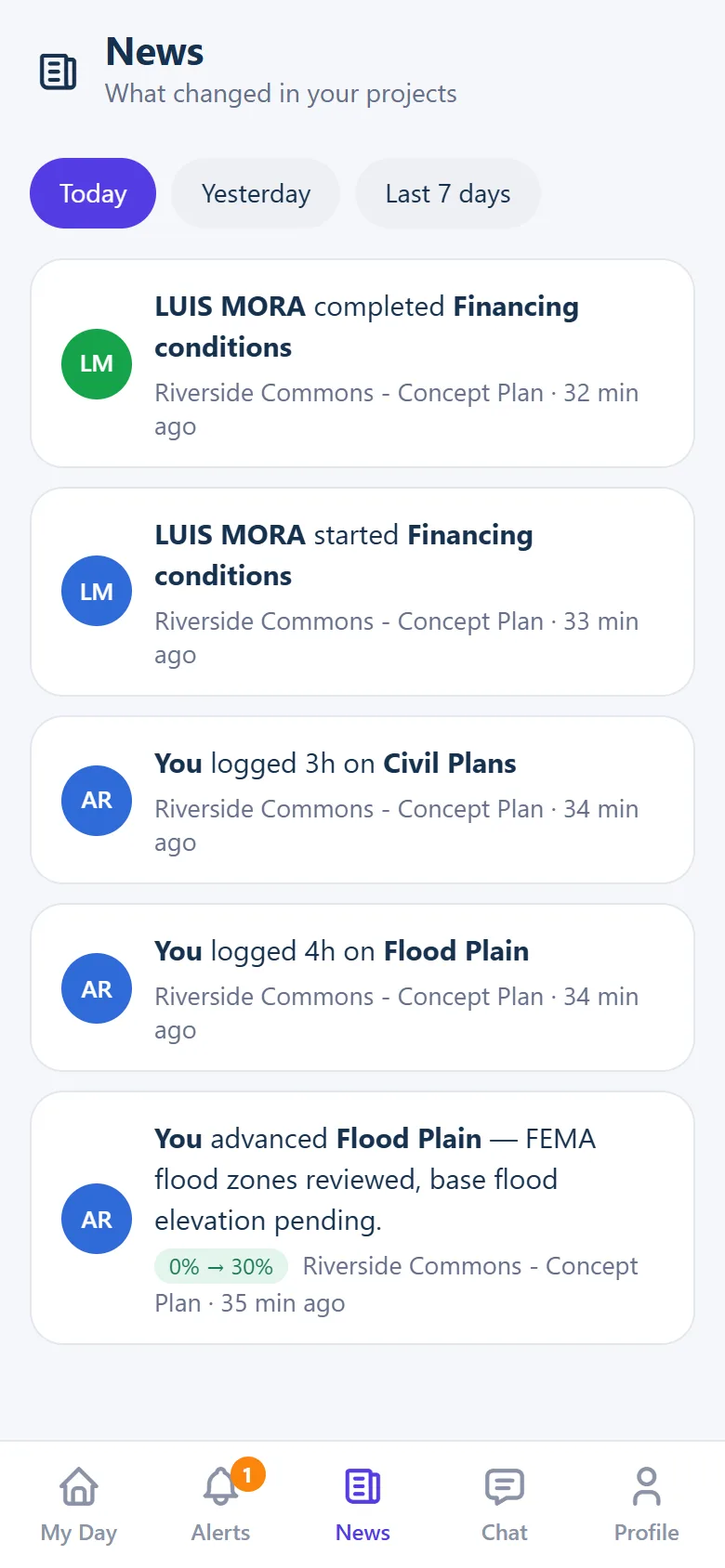
A daily summary of what changed in your projects: who started, advanced or completed an activity, and who logged hours. Your own changes say You.
- Switch the period with Today, Yesterday or Last 7 days.
- The green chip shows the progress jump, for example 0% → 30%.
- Tap an item to open that activity. Scroll down and older items keep loading.
Team chat
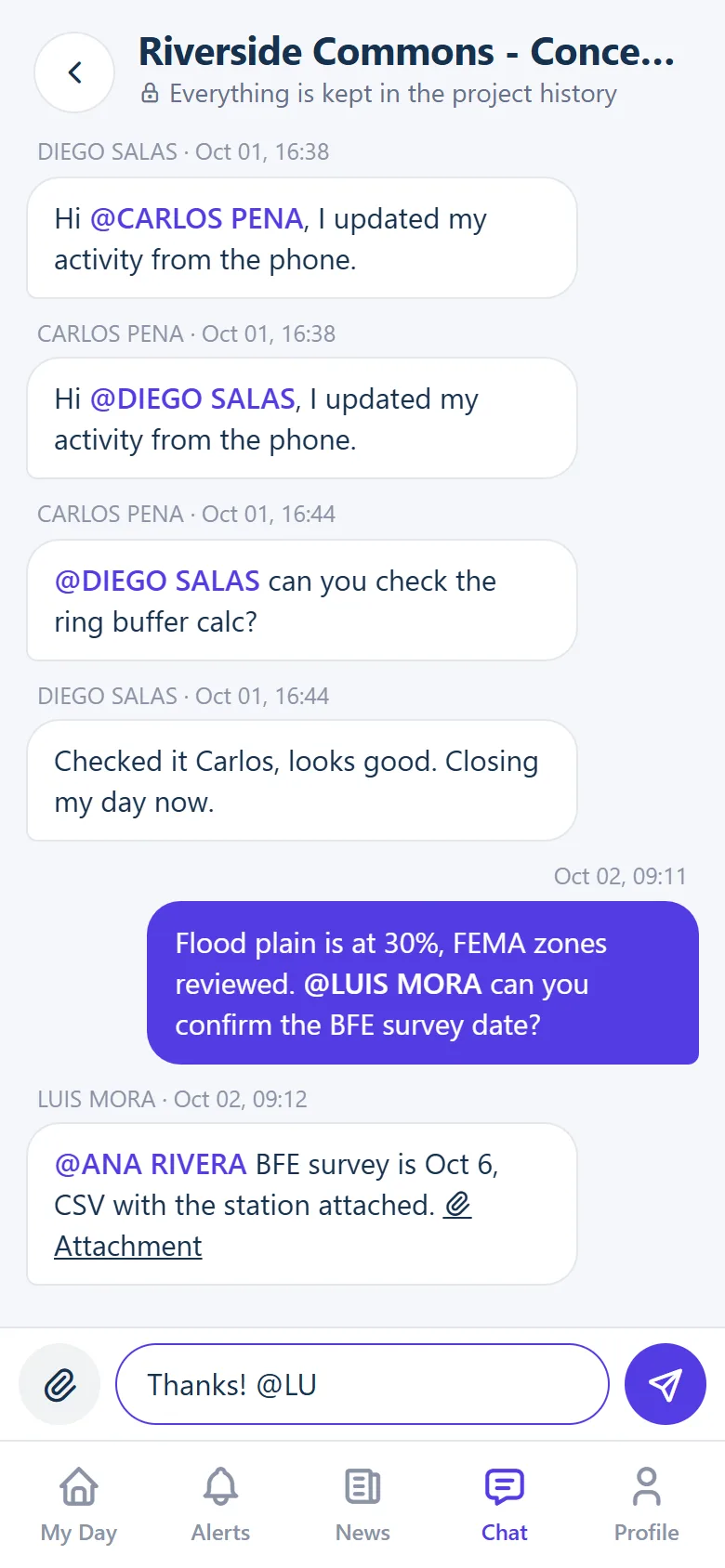
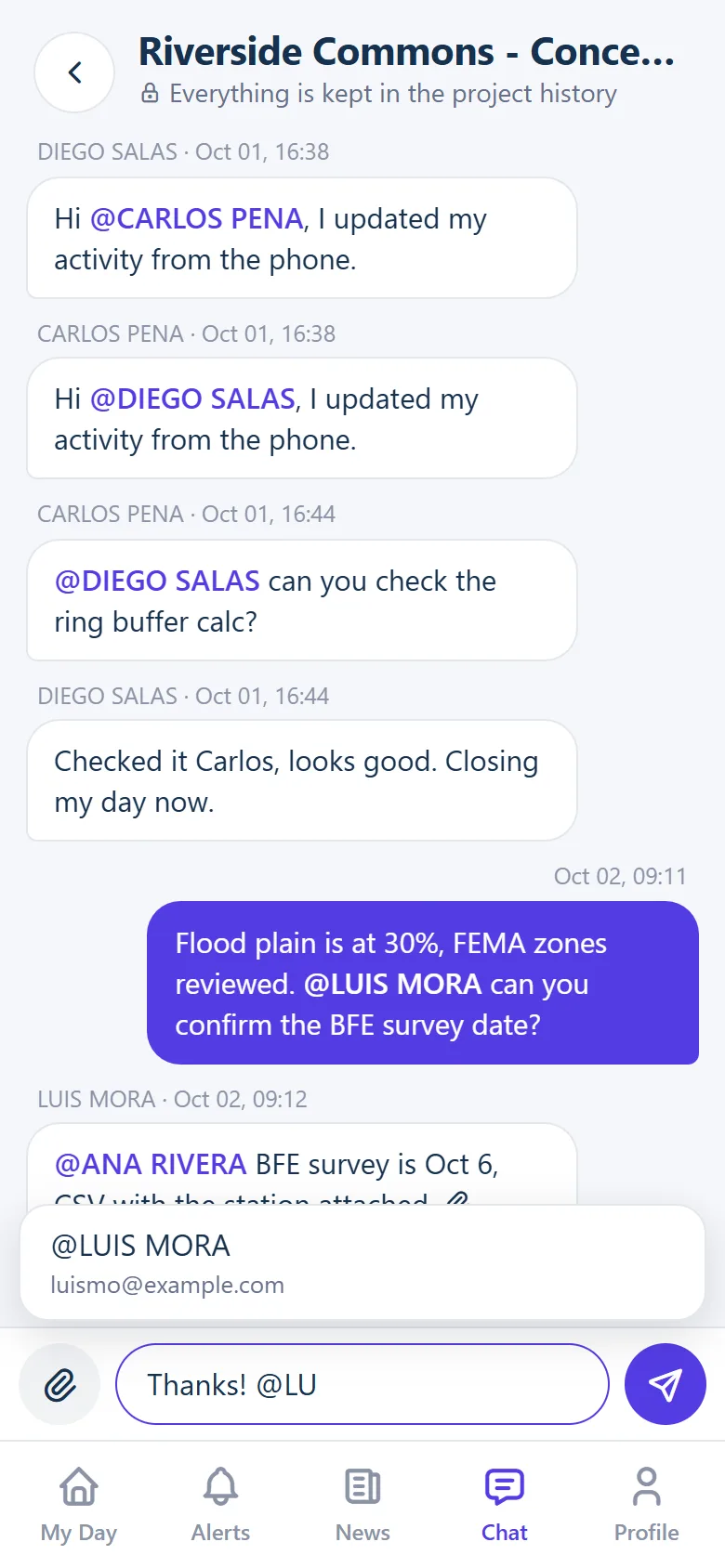
One chat per project, shared with the desktop version. Projects with recent messages come first, with the number of unread messages.
- New messages appear on their own every few seconds while the chat is open.
- Type @ and the start of a name to mention someone. The suggestion shows the email too, so you pick the right person when two names match. @all notifies the whole team.
- Tap the paperclip to attach a photo, PDF, spreadsheet or document.
- Everyone in the project team gets an alert for each message. The people you mention get a "mentioned you" alert.
Profile
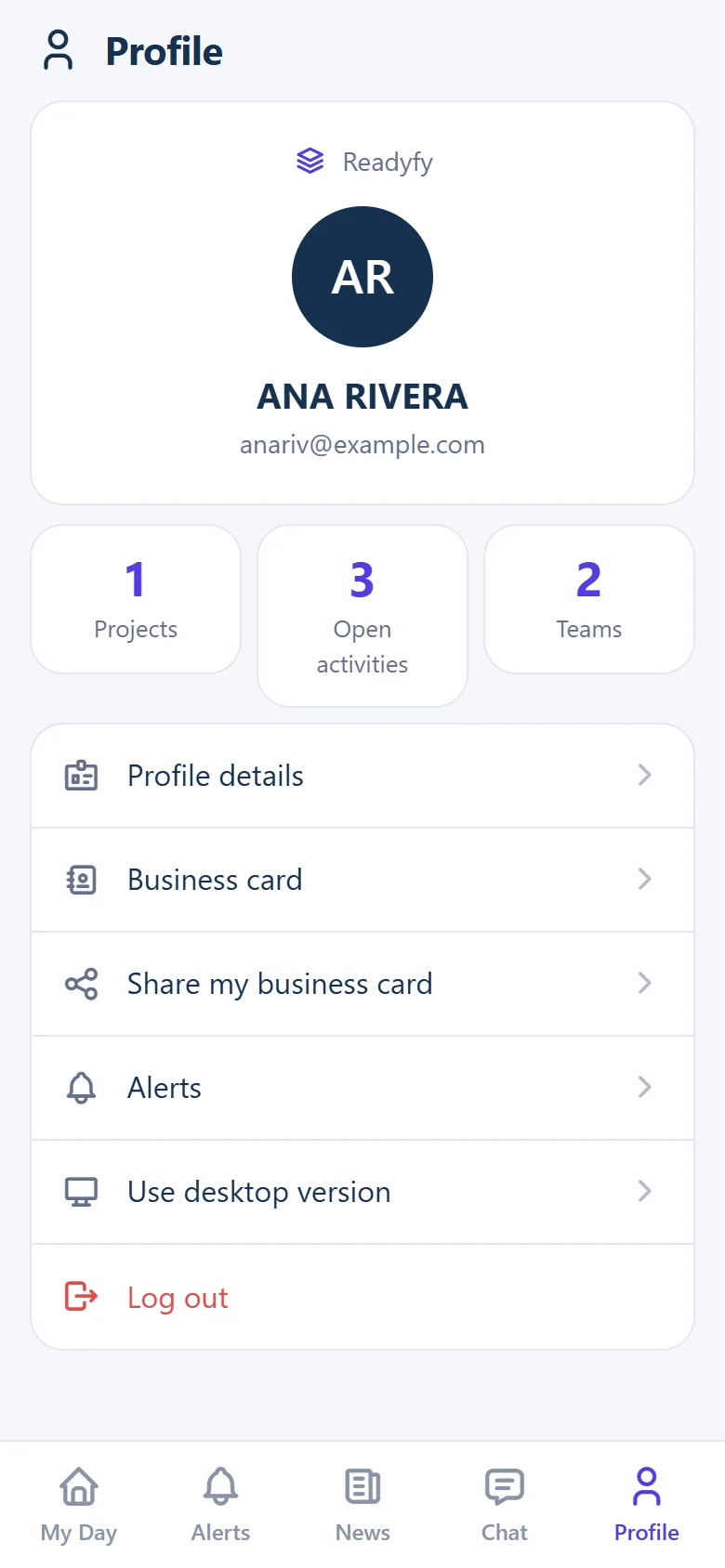
Your summary, your business card and the switch to the desktop version.
- Business card opens your digital card. Share my business card sends its link through WhatsApp, email or any app on your phone.
- Use desktop version takes you to the full panel and keeps you there on this phone. To come back, open the app icon or readyfy.ai/m/.
- Log out closes the session on this phone only.